Creating Drum-less Tracks
Often when I play along to music I’ll simply play over the drums on a YouTube track with very little issue, my drums are so much louder than the track it works nicely. That may work for jamming by yourself, but obviously there are situations where you’d like to play to a track without drums, like if you want to record your own cover.
Drum-less tracks exist, but you’ll likely only find a few on YouTube, and only for more popular songs. These days it’s worthwhile creating your own drum-less tracks.
Creating your own drum-less track has become much easier in the last few years thanks to a few tools that can strip the vocals, bass, drums, and other instruments back out to individual tracks. Only recently have these reached a quality level that I’d say they’re worth using. Even a year or two ago most of these tools “worked”, but would leave the final product a bit warped and sounding off.
What Tools Should I Use?
My two favorite tools for this are:

and

Both of these tools have free and paid tiers, but I’ve been getting along nicely most often with the free tier of the Moises. As of writing this post the free tier allows you process 5 free songs per month, up to 5 minutes long. For the rest of this guide I will focus on the Moises tool.
How Do I Create a Drum-less Track With Moises?
For this guide I will use screenshots of the desktop version of Moises, from May 2026. It’s very possible that the interface will change at some point, and I will do my best to keep this guide relevant.
Step 1: Create An Account
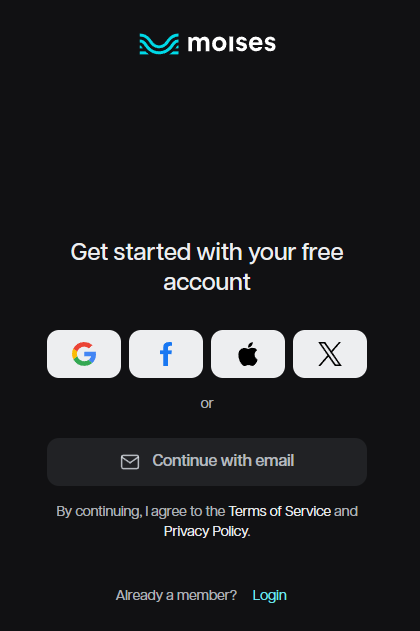
Go to the site and start the process to create a free account. You can set it up with email or a social media login.
Step 2: Add Your Track
Once you are logged in on the home page you’ll see a white button in the upper right to “Add” your track. It will take you to a page like this:
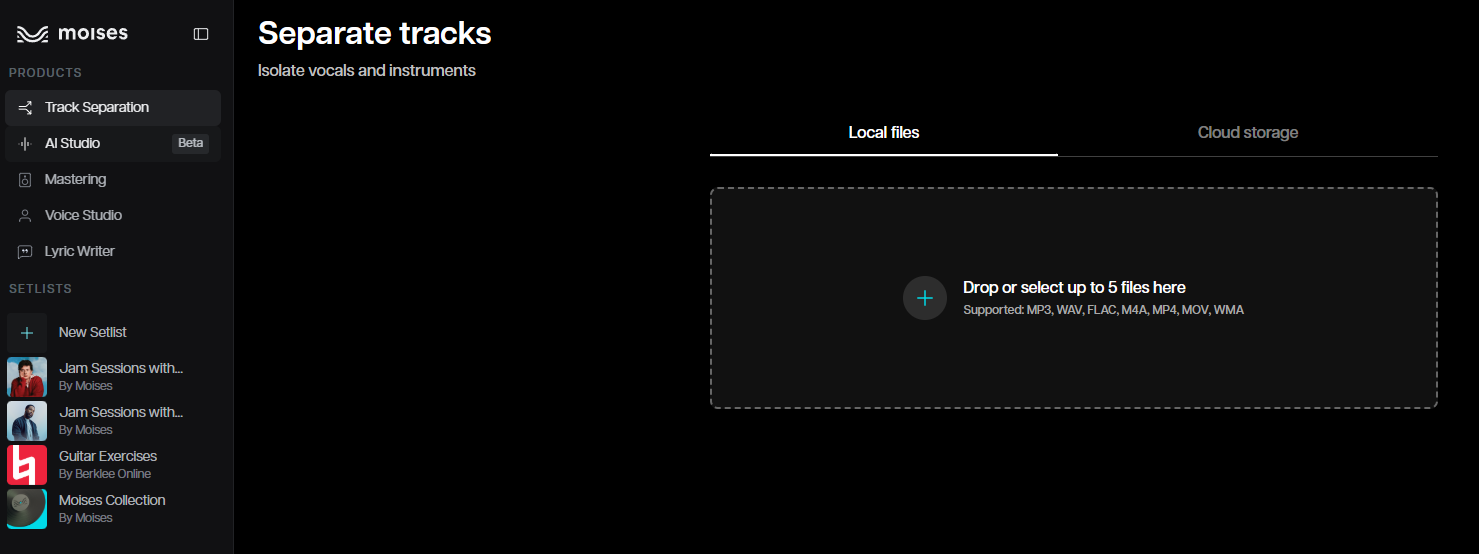
Once you’re here all you have to do is drag and drop your music file. In this age of streaming it’s not always simple to get an actual MP3 file of a song you’re looking for. There are options online for how you can do this, and I’m sure there are still services out there that sell MP3 files.
Step 3: Configure The Tool
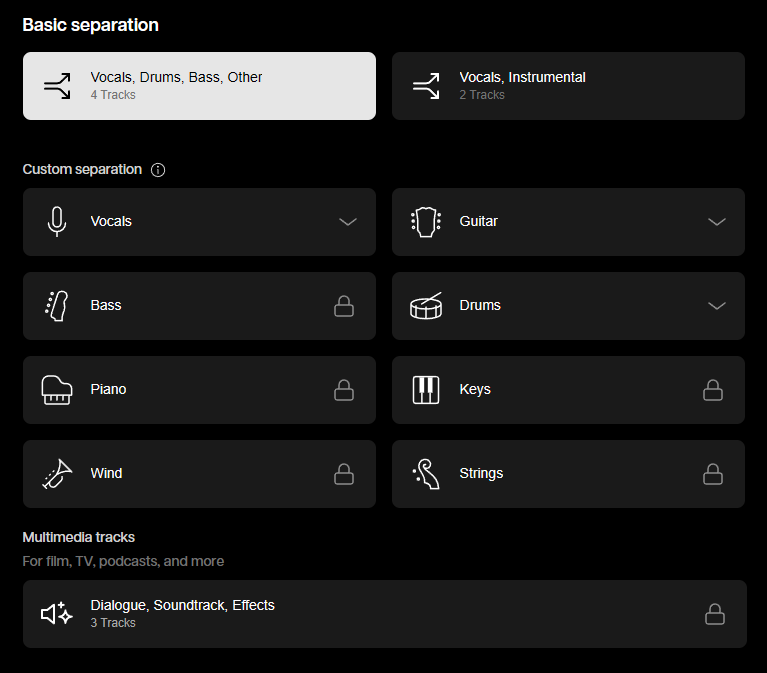
Now that you’ve dragged your file into the browser you’ll be shown an options screen to configure your file. Custom track separation is only available in the paid tiers, so for the free tier you’ll leave this configuration page alone and end up with 4 audio files: vocals, drums, bass, and everything else. Once you’re ready, hit that teal Submit button in the bottom right! (it may take a few minutes to process so be patient!)
Step 4: Create Your Drumless Track
Once your track is done, click on it and you’ be brought to a page that shows the 4 audio file waveforms stacked on top of one another.

From here all you need to do is move the volume slider on the drums track all the way down to zero. Once you do that you can hit play and listen to your drum-less track to see how well it worked! If you like what you hear, then hit that export button and go pick up your sticks, you’re ready to jam!
Whether you’re looking to make more professional drums covers, or just something fun for you and your friends to jam to, creating drum-less tracks has never been easier!
Go have fun!